Google review QR code: how to create it, where to place it and what to write next to it
· 4 min read
A well-placed QR code lets your customers leave a Google review in seconds from their phone. Here's how to create it, where to put it, what to write next to it and the mistakes to avoid.
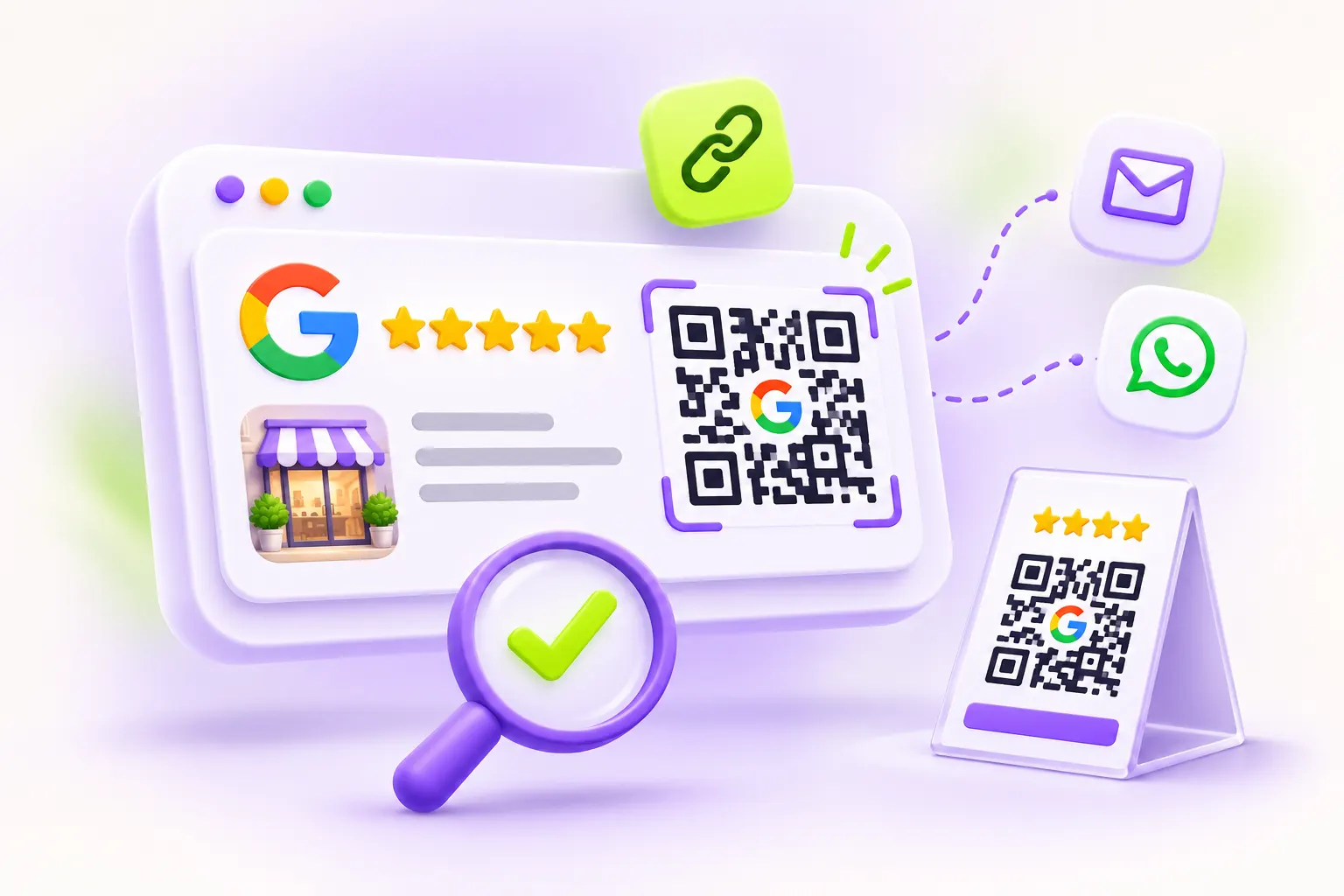
Your customers almost always have their phone in hand. A QR code that opens your Google review form directly saves them from searching for your listing: they scan, rate, write, and they're done. It's one of the simplest ways to get more reviews in a shop, a restaurant, a salon or a waiting room. Here's how to create it, where to place it and how to present it.
Step 1: get your Google review link
A QR code is just another way of writing a link. So first you need the direct link to your review form. The simplest way is to use the Ask for reviews option on your Google Business Profile. We explain every method, on a computer and on a phone, in our article on the Google review link.
Step 2: create the QR code
Two options:
- A QR code generator: you paste your link and download the image. Choose a generator that creates a "static" QR code, meaning one that contains your link directly. Some free services create QR codes that go through their servers and stop working when a trial ends.
- Trastivo's Collect reviews page: it creates your QR code from your Google listing, with an A4 poster ready to print. It's available on every plan, including the Free plan.
With Trastivo, the QR code goes through a short link: if your Google link ever changes, just update it in Trastivo, and any QR code you've already printed keeps working. You can also see how many times it has been scanned.
Step 3: test it before printing
Before printing in large quantities:
- scan the QR code with two different phones (Android and iPhone);
- check that the review form opens on the right business;
- print it at its final size and scan it from the distance the customer will be at.
Where to place your QR code
The right spot is where customers wait, pay or have just had a good experience:
- At the counter or near the card terminal, when they pay.
- On tables, with a table tent or on the menu holder, for a restaurant or a café.
- In the waiting room or at the styling station, for a practice or a salon.
- On the receipt, invoice or delivery note, which the customer keeps.
- On the shop window or the door, for customers who walk past again.
- In the room or at reception, for a hotel or a holiday rental.
- On the business card left after a job, for a tradesperson.
What to write next to the QR code
A QR code on its own doesn't say what it does. Add a short, sincere line:
- "Your review matters! Scan to leave us a review on Google."
- "Enjoyed your visit? Tell us on Google, it only takes 30 seconds."
- "Thanks for your visit. Your review helps other customers find us."
That's exactly what Trastivo's poster does: a "Your review matters!" heading, the name of your business, the QR code and the line "Thank you, it only takes 30 seconds".
Mistakes to avoid
- A QR code that's too small: on a poster or a table tent, make it at least 3 cm wide, more if it needs to be scanned from a distance.
- Poor contrast: a dark code on a light background scans much better than a colored code on a photo.
- A damaged display: a QR code that's folded, scratched or laminated with glare may stop working. Replace it as soon as it wears out.
- Something in return: offering a discount or a gift in exchange for a review is prohibited by Google's rules, as is asking only satisfied customers for reviews. The QR code must be offered the same way to all your customers.
For more ideas, read our 10 methods to get more Google reviews.
FAQ
Does a Google review QR code expire?
A static QR code that contains your Google link directly doesn't expire. A QR code created by a third-party service can stop working if that service shuts down or the trial ends. With Trastivo, it works as long as your account exists, even on the Free plan.
Do I need an app to scan it?
No. Recent phones, both Android and iPhone, scan QR codes directly with the camera.
One QR code per location?
Yes. Each location has its own Google listing, and therefore its own link and its own QR code.
What next: how do I show these reviews?
Once the reviews come in, show them on your website with a widget. Read how to display Google reviews on your website, or create your free account to get your QR code and your widget in one place.