Google review link: how to find it and share it with your customers
· 4 min read
A direct link to your Google review form is the simplest tool for getting more reviews. Here's where to find it on a computer and on a phone, how to create it yourself and where to share it.
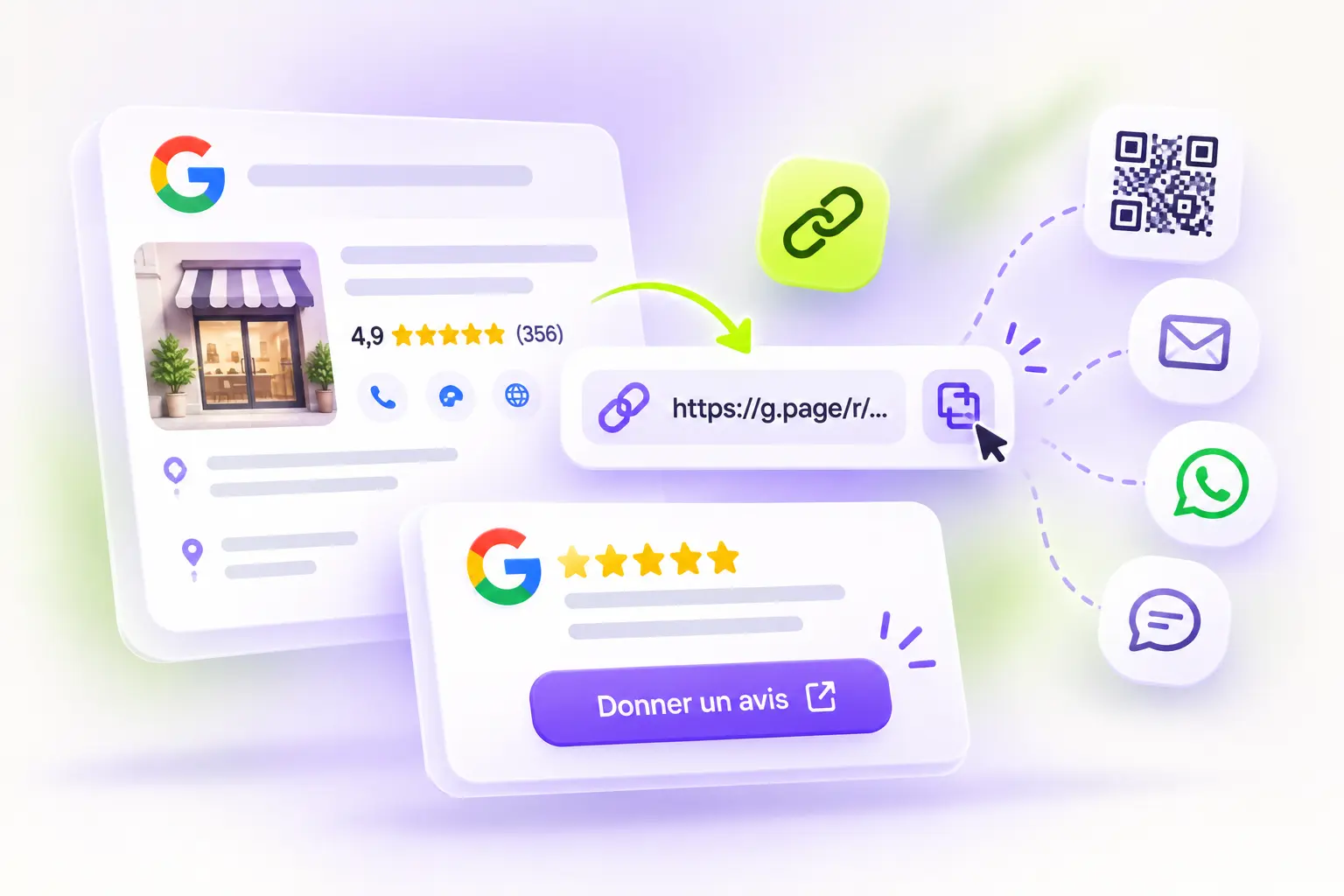
Saying "leave us a review on Google" isn't enough: the customer has to search for your business, find your listing, spot the right button, then write. At every step, some customers give up. With a direct link, they land in one click on the review form, already open on your business. Here's how to find that link, create it if needed, and share it in the right places.
Method 1: from your Google listing, with "Ask for reviews"
This is the simplest method. You need the Google account that manages your business listing (Google Business Profile).
On a computer
- Sign in to Google with the account that manages your listing.
- Search for your business name on Google, or type "my business".
- Your listing's management panel appears at the top of the results.
- Click Ask for reviews.
- Copy the link provided.
On a phone
- Open the Google app or Google Maps with the account that manages your listing.
- Open your listing's management view, for example by searching for "my business".
- Tap Ask for reviews, then share or copy the link.
Google changes its menus regularly: if the button has moved, look for an option such as "Get more reviews" or "Share review form".
Method 2: create the link with your business's ID
Every business on Google Maps has a unique identifier called a "Place ID". You can find it with Google's free "Place ID Finder" tool: type your business name, select it on the map, and copy the ID shown.
Then add it to the end of this address:
https://search.google.com/local/writereview?placeid=YOUR_PLACE_ID
By replacing YOUR_PLACE_ID with your ID, you get a link that opens your business's review form directly. This method is useful if you don't have access to the account that manages the listing.
Test your link before sharing it
Before printing it or sending it to your customers:
- open the link in a private browsing window, then on a phone;
- check that the review form opens on the right business;
- if you have several locations, check that each link matches the right one.
Where to share your review link
Once you have your link, the goal is to put it where your customers will see it at the right moment:
- A QR code at the counter, near the till, on tables or in the waiting room.
- The receipt, invoice or quote, with a short thank-you line.
- An email or text message sent right after the visit or purchase.
- Your email signature, for your conversations with customers.
- Your website, for example on the contact page or below your reviews.
- Your social media, from time to time, to thank your customers.
Sample message: "Hi, thanks for your visit. If you have two minutes, a review on Google would really help us: [link]. Have a great day!"
You'll find more ideas, and the mistakes to avoid, in our 10 methods to get more Google reviews.
What Google prohibits
Your review link must be shared the same way with all your customers. Google's rules notably prohibit:
- offering a discount, gift or perk in exchange for a review;
- asking only satisfied customers for reviews;
- writing fake reviews or having them written, including by friends, family or your team.
These practices can lead to reviews being removed, or even restrictions on your listing.
A ready-to-use short link and QR code with Trastivo
Google's link is long and hard to copy. In Trastivo, the Collect reviews page of your dashboard gives you, for each listing:
- a short link to your Google "Leave a review" page, with the number of visits;
- a QR code to print, and a poster ready to put up at the counter;
- email and SMS messages ready to send to your customers.
If your Google link changes, just update it in Trastivo: any QR code you've already printed keeps working. This page is available on every plan, including the Free plan.
FAQ
Does the Google review link change over time?
The link provided by "Ask for reviews" usually stays the same. To avoid reprinting your materials if it ever changed, use a short link that you can redirect, like Trastivo's.
Does the customer need a Google account?
Yes, Google requires users to be signed in to a Google account to post a review. Most Android and Gmail users already are.
Can I use the same link for several locations?
No. Each location has its own listing and therefore its own link. Create one link and one QR code per address.
How do I then show these reviews on my website?
Once the reviews come in, show them to your visitors with a widget. Read how to display Google reviews on your website, or create your widget for free.